Explore the possibilities
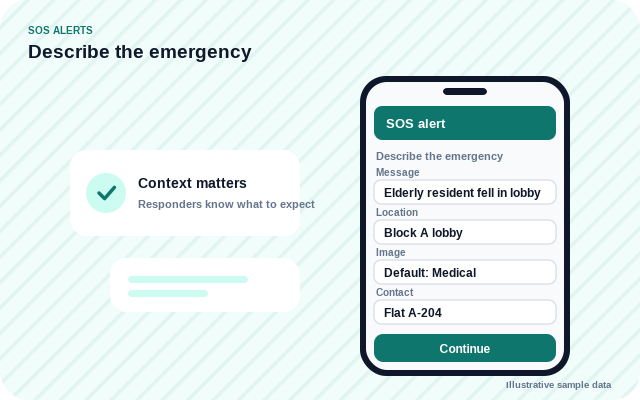
Describe the emergency
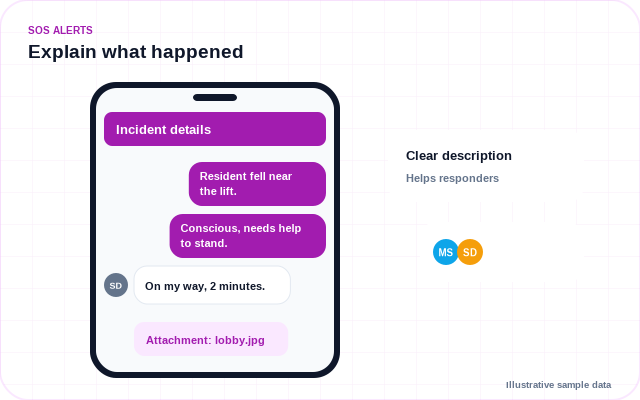
Enter a message explaining the emergency so people receiving the SOS have context for the request.

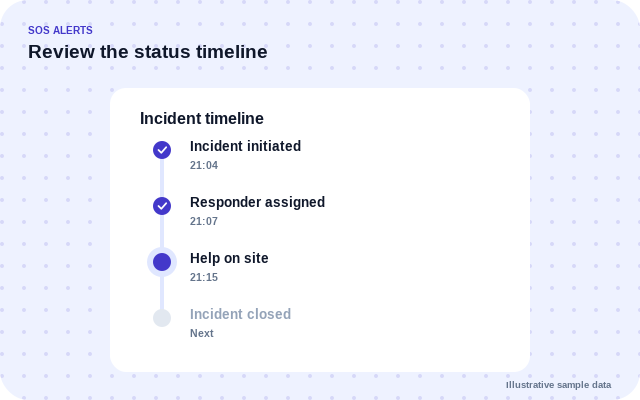
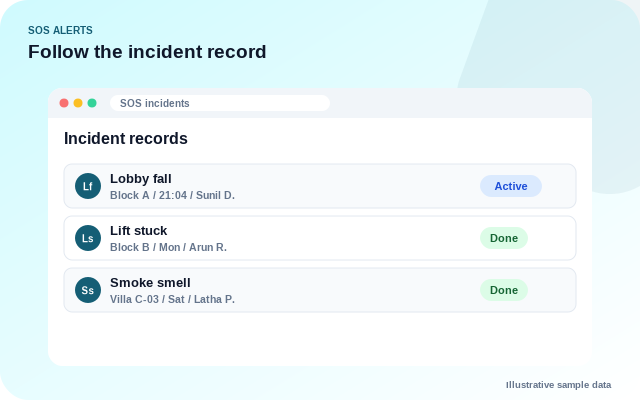
Send an SOS message with an image to request assistance through the community app. Follow the incident's current status, assigned responder, and update timeline.
Provide responders with a description of the situation and review the recorded response details from the SOS incident screen.
Enter a message explaining the emergency so people receiving the SOS have context for the request.
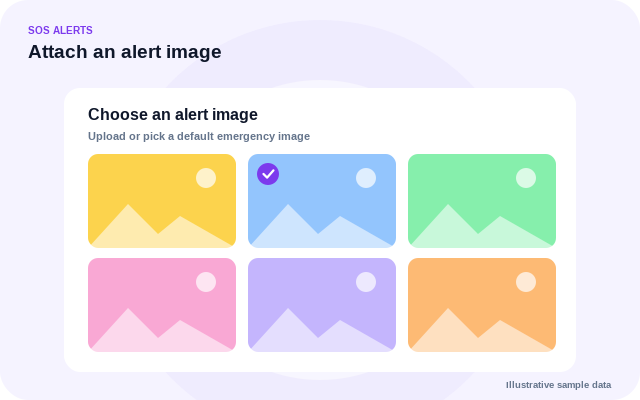
Upload an image or choose from the default emergency images available in the app.
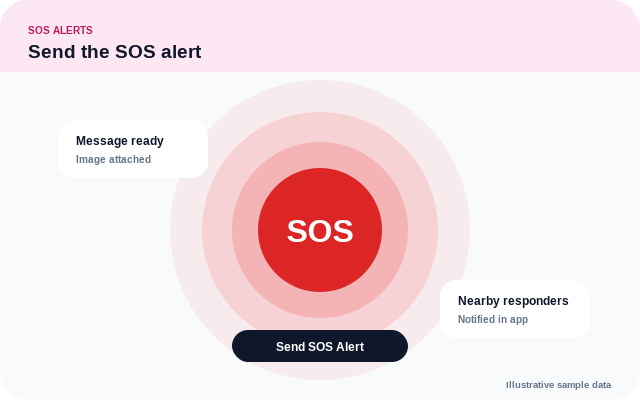
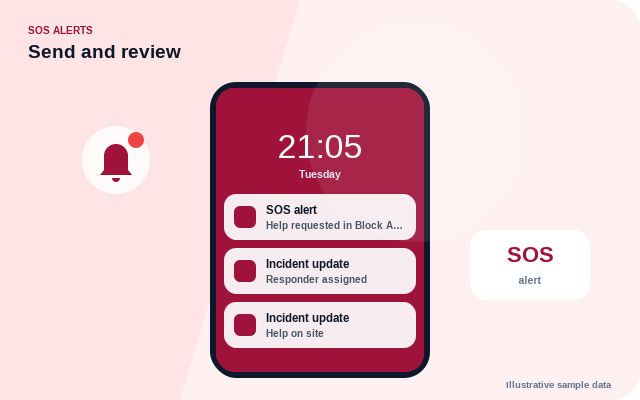
Use the Send SOS Alert action to notify nearby responders through the app. Sending an alert is a request for assistance, not a guarantee that someone has accepted it.
Open the incident detail screen to review the assigned responder's name and profile image when a responder is assigned.
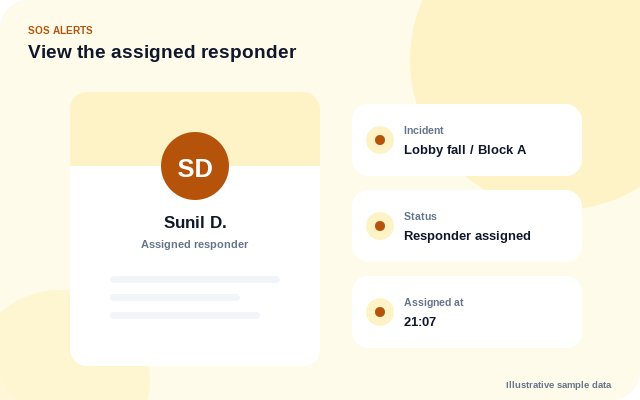
See recorded status updates, responder details, and timestamps. The timeline can show that an incident was initiated or marked as a false alarm.
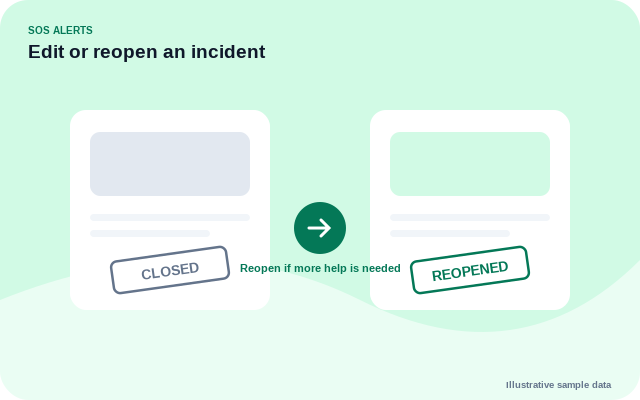
Use the available incident actions to update alert details or reopen a closed incident when further help is needed.
Write a concise message and choose an image that helps describe the situation.
Send the SOS through the app, then review its status and any assigned responder rather than assuming help is already on the way.
Check the status timeline and use available edit or reopen actions if the situation changes.
SOS is a community assistance feature, not an emergency-service dispatch system. If there is immediate danger, call your local emergency number directly and follow local safety procedures. This website does not send SOS alerts.